
Search for files & folders
Filecamp’s search tool makes it possible to quickly search huge quantities of files and folders.
Search for files and folders
Click the Search  icon located in the Toolbar.
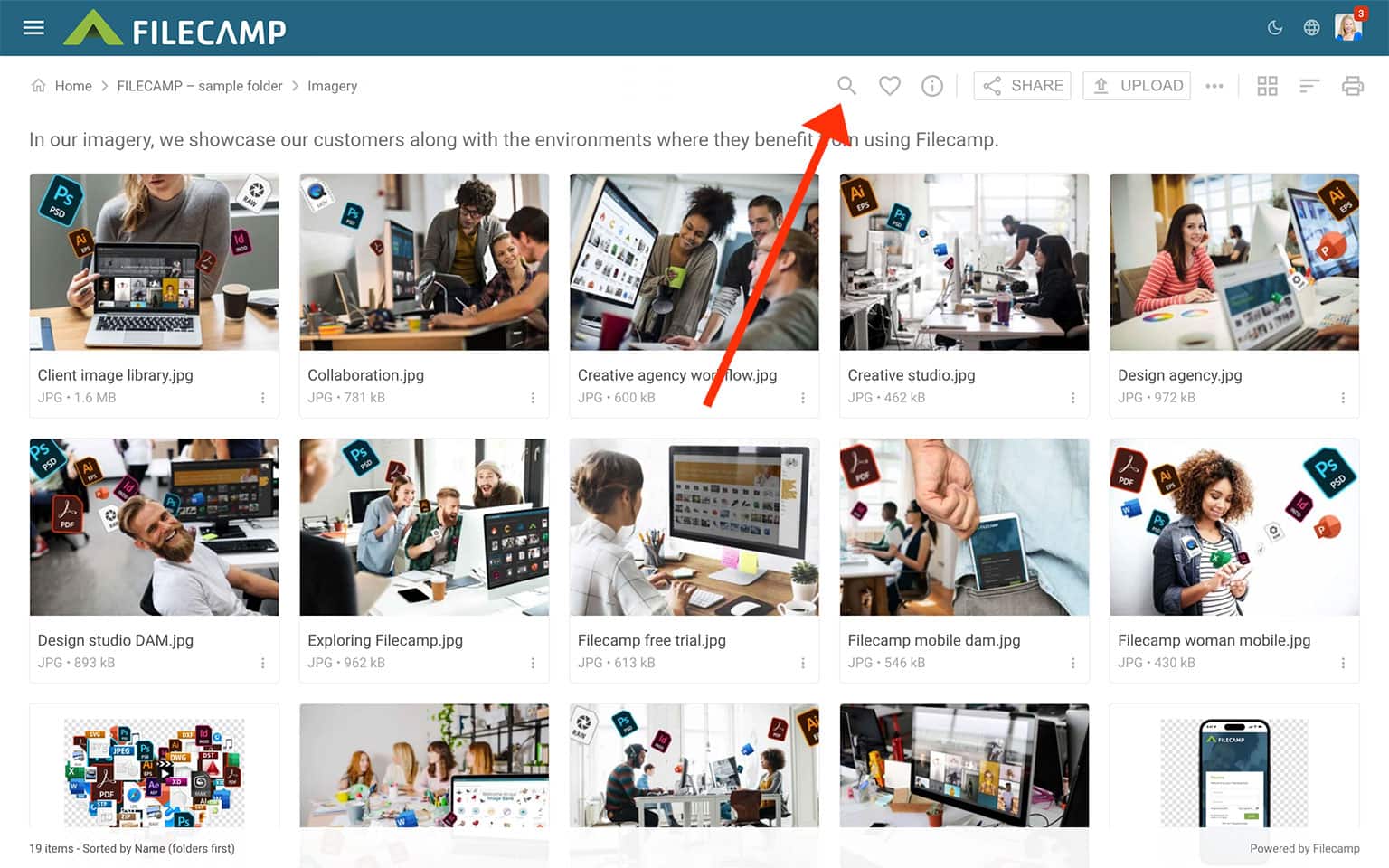
In the Search field, results are displayed as you type, making it easy to find files instantly.
The search results page displays a list of all the items found.
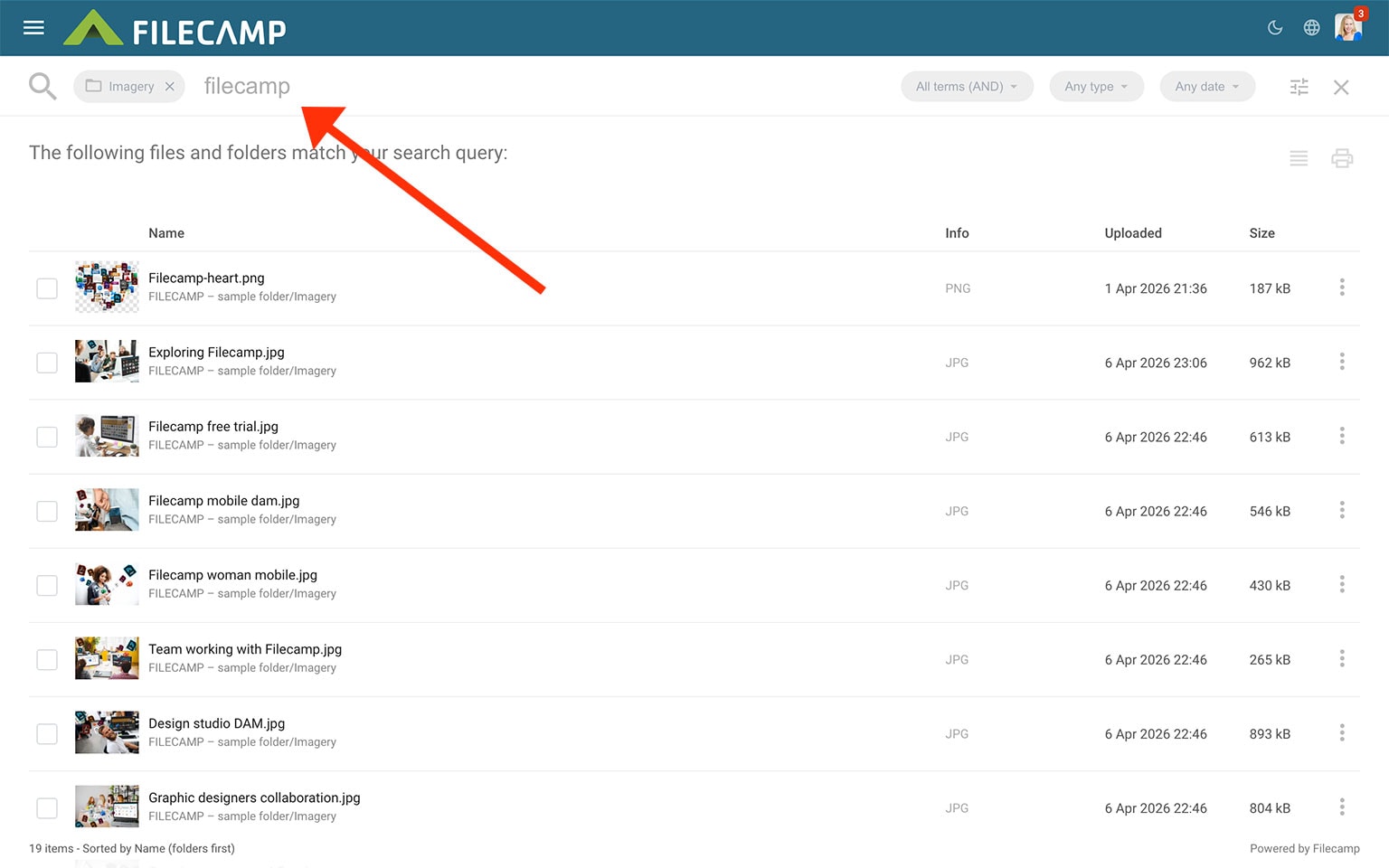
A normal search will be a global search; anything in the files that are related to what was searched will be displayed. This can be file names, descriptions, tags, keywords, folder names, etc.
To preview a specific search entry, simply double-click on the item in the search results to open it in a larger preview.
You can also navigate to the parent folder containing the item by clicking on the path displayed below the file or folder name.
Advanced search
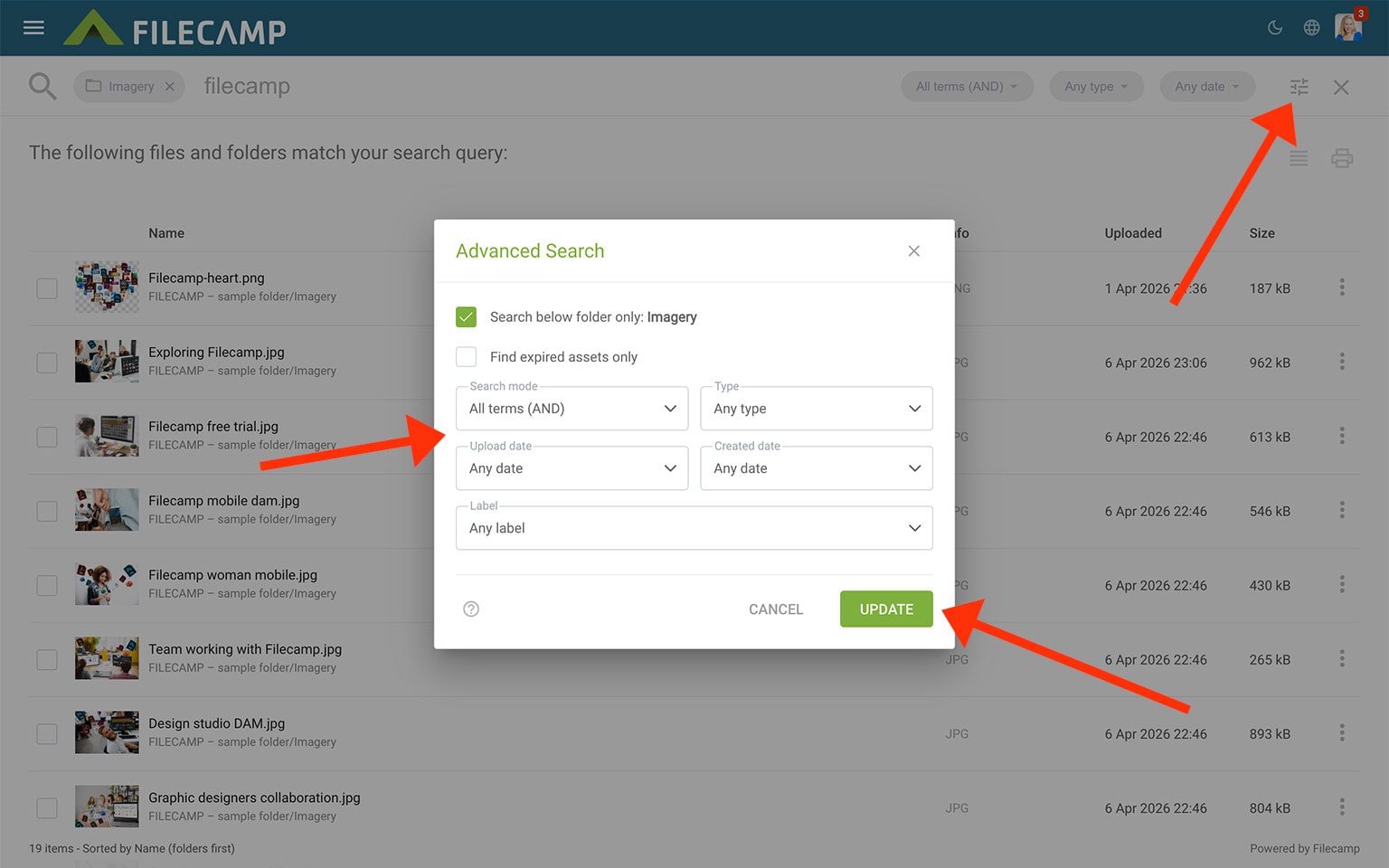
Advanced Search lets you narrow your search results using specific filters.
- Search below folder only searches only in the current folder and its subfolders.
- Find expired assets only shows only assets that have expired.
- Search mode controls how search terms are matched. Use Exact phrase for a full phrase, All terms (AND) when every word must match, or Any term (OR) when only one word needs to match.
- Type filters results by asset type, such as images, folders, videos, PDFs, documents, spreadsheets, presentations, or audio.
- Upload date filters results by when files were uploaded, such as the last 24 hours, last 7 days, or a custom date range.
- Created date filters results by the original creation date stored in the file’s metadata.
- Label filters results by a specific label.
Click UPDATE to apply the selected filters.
Downloading from search results and other actions
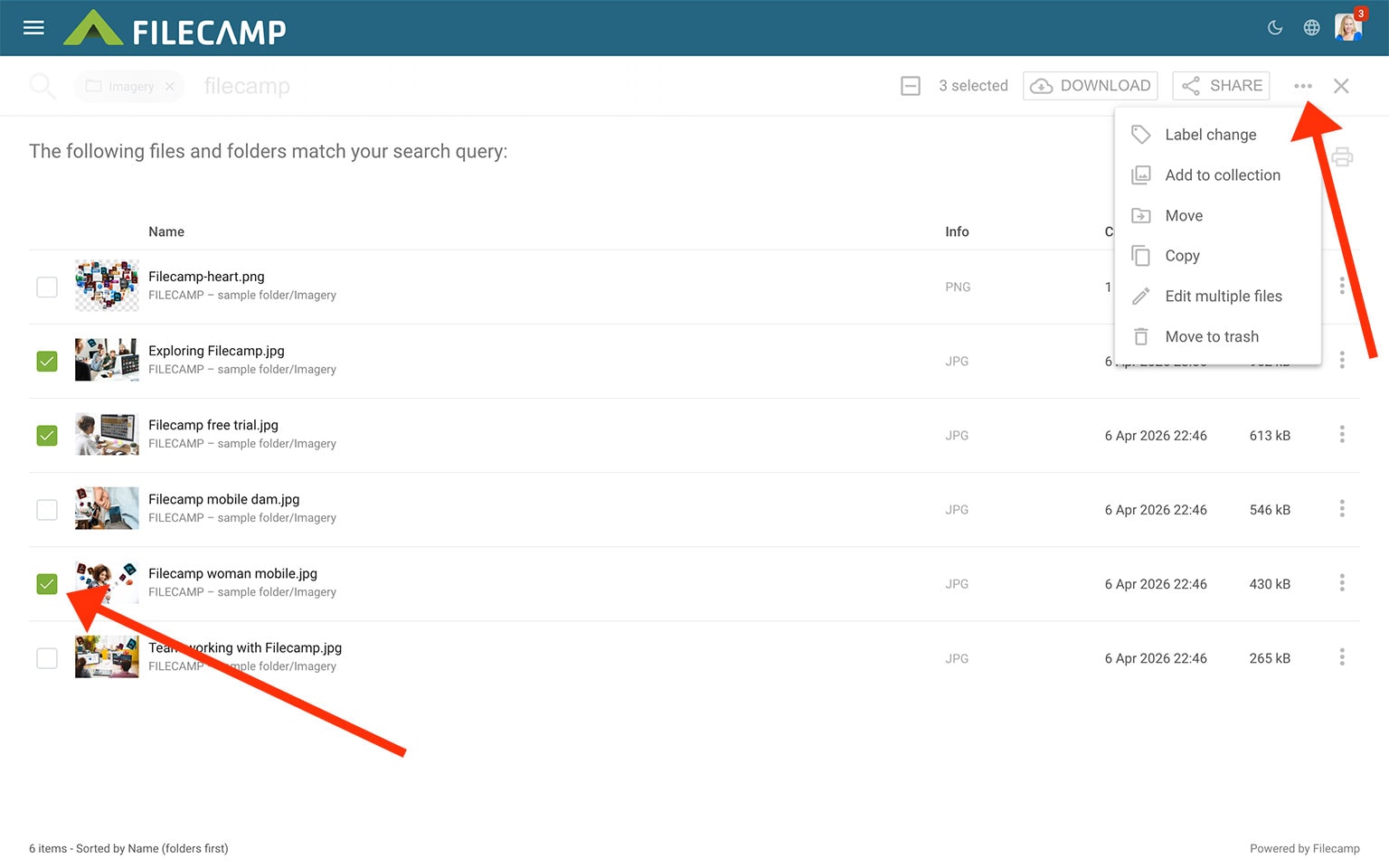
From the Search Results list you can download a file by clicking on the Three Dots Menu  and selecting
  Download.
If you want to download multiple items you can select all the files and folders you want to download and choose Download in the Bulk Action Bar. A .zip archive will now be created and the download process will begin.
You can also  Share,
  View info,
  Change label,
  Comment,
  Move,
Move,  Copy,
Copy,  Add to collection, and delete files directly from the Search Results page.
Search modes, Boolean operators, and wildcards
Use search modes, filters, Boolean operators, and wildcard characters (*, ?) to narrow your results and find what you need faster. Read more.
Related articles
Files
Look and feel
Folders
- Create folder
- Edit folder
- Copy or move
- Delete
- Folder upload
- Share folder links
- Request files links
- Custom thumbnails
Users
Favorites
Search
Collections
- Create Collection
- Add files to Collection
- Remove files from Collection
- Share Collection links
- Delete Collection